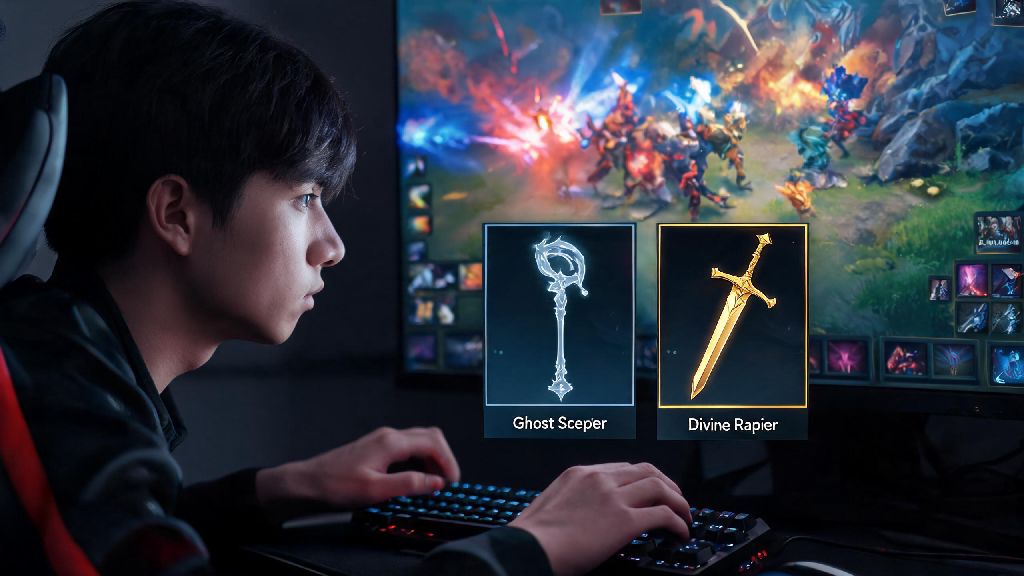
You're in the middle of a chaotic teamfight, your BKB just ran out, you have enough gold for a Ghost Scepter to survive the Phantom Assassin critting your entire team, but you fumble scrolling through the shop and die before you can make the purchase. We've all been there, right? That split second of delay can cost you a teamfight, a tower, or even the entire game. If you want to eliminate that unnecessary friction, learning how to add multiple items to quick buy Dota 2 is one of the easiest low-effort, high-reward changes you can make to your gameplay. It takes less than five minutes to set up, and it will save you countless frustrating deaths over your Dota 2 career.
Why Multi-Item Quick Buy Is a Game-Changer for All Skill Ranks
Most new players only use quick buy for one big-ticket item at a time, like their next Black King Bar or Aghanim's Scepter. But if you only have one item saved, you're wasting half the feature's potential. For example, if you're saving for a Divine Rapier, you still need to buy cheap regen, wards, or smoke when you're back at base. If you have to search the shop for those small items every time, you're wasting 10 to 15 seconds per trip that you could spend farming or joining your team for a fight.
Even a 5-second difference in item purchase timing can mean the difference between making a fight on time and missing it entirely. I've seen Immortal ranked players lose games because they fumbled buying a Dust of Appearance right before a Roshan fight, so this isn't just a tip for new players. It also reduces the chance you'll accidentally buy the wrong item when you're panicking, which is a way more common mistake than most people will admit.
You don't have to be a pro to benefit from this feature either. Even if you only play unranked all pick for fun, cutting down on shop time means you get to spend more time actually playing the game, not navigating menus.
Step-by-Step Guide to Add Multiple Items to Quick Buy Dota 2
The process is way simpler than most people realize, and you can do it either in a practice lobby or right before a match starts. You don't need any mods or third-party tools, everything is built directly into the base game. Once you get the hang of how to add multiple items to quick buy Dota 2, you can tweak the queue mid-match without even opening the shop fully if you memorize basic item hotkeys. Here's exactly how to set it up:
That's all there is to it, no complicated settings changes required. If you want to rearrange the order of your quick buy queue, you can drag and drop items in the quick buy slot to adjust their priority. The first item in the queue will be purchased first when you hit your quick buy hotkey, so make sure you order them by how urgently you need each one. I usually put situational consumables like Dust or Smoke at the top of my queue if I'm heading into a fight soon, and save big core items for lower priority if I don't have enough gold for them yet.
Ideal Quick Buy Setups for Different Roles and Situations
The best quick buy setup isn't one size fits all, it changes depending on what role you're playing and what's happening in the current match. Let's break down common setups for each role so you don't have to guess what to add.
For hard support players, your queue should almost always have at least two consumables before any big ticket items. I usually run with Observer Ward, Sentry Ward, Smoke of Deceit at the top of my queue for the first 20 minutes of the game, followed by my next utility item like Glimmer Cape or Force Staff. That way I never forget to restock on vision items when I'm back at base, even if I'm distracted typing callouts to my team. I also keep a TP scroll in the queue at all times, so I never get stuck without a way to rotate to a fight.
For carry players, you can balance big core items with cheap survival consumables. For example, if you're playing Phantom Assassin against a line-up with lots of magic damage, your queue could be Healing Salve, Magic Stick, Black King Bar, then Butterfly. That way if you're low on health after a gank, you don't have to search for a salve while you're running for your life. I also like to keep a Quelling Blade in the queue for the first 10 minutes, so I can replace it if I accidentally sell it when clearing inventory space.
Mid laners should usually keep a Teleport Scroll at the top of their queue at all times, so they can instantly buy one to rotate to a side lane fight or defend a tower. You'd be shocked how many mid laners lose their tier 2 tower because they spent 10 seconds looking for a TP scroll in the shop instead of having it saved to quick buy. If you're playing against a hero with invisibility like Bounty Hunter or Clinkz, always keep Dust of Appearance in your quick buy queue at all times.
Common Mistakes to Avoid With Your Quick Buy Configuration
Even if you set up your multi-item quick buy correctly, there are a few common mistakes that can make the feature less useful, or even cause you to lose fights. First, don't fill your queue with 10 items at once. If you have too many items saved, you'll end up accidentally buying things you don't need, or scrolling through the queue to find the item you actually want. I recommend sticking to a maximum of 4 to 5 items at any given time, so you don't clutter the slot.
Another common mistake is forgetting to update your queue as the game progresses. If you already bought your BKB, there's no reason to leave it in your quick buy queue taking up space. Get in the habit of removing items you've already purchased and adding new ones every time you go back to base. It only takes two seconds, and it will save you a lot of headaches later.
Never leave situational items in your queue permanently if they don't fit the current game state. For example, if you bought a Ghost Scepter to counter the enemy Phantom Assassin and she sold her items to go full magic damage, you don't need to keep Ghost Scepter in your queue anymore. You also want to make sure you don't mix up your hotkeys. I've had teammates who accidentally hit their quick buy hotkey while they were spamming abilities in a fight, and ended up buying three Mantles of Intelligence they didn't need because they were left in their queue. If this happens to you a lot, you can change your quick buy hotkey to something you won't hit accidentally, like a side mouse button instead of space.
At the end of the day, Dota 2 is a game of small edges. You don't need to be a mechanical prodigy to climb ranks, you just need to eliminate unnecessary mistakes and cut down on wasted time wherever you can. Taking a minute to learn how to add multiple items to quick buy Dota 2 is one of the smallest changes you can make, but it will pay off for every single match you play from here on out. You don't have to copy any pro player's setup exactly, play around with what works for your playstyle, and adjust your queue as you go. After a few matches, using multi-item quick buy will feel like second nature, and you'll wonder how you ever played without it.