If you’ve ever signed up for Dota 2 Plus to unlock exclusive hero challenges, stat overlays, and seasonal rewards, you know how useful the subscription can be for regular players. But if you’re playing less often these days, or you don’t use the perks enough to justify the monthly cost, you’re probably looking for how to cancel Dota 2 Plus without jumping through annoying hoops. A lot of players struggle with this at first, because Steam tucks subscription settings away in a less obvious part of your account, not the in-game Dota 2 menu. We tested every possible cancellation method to make this guide as simple as possible, no hidden fine print or surprise charges to worry about.
What to Check Before You Cancel Dota 2 Plus
Before you hit the cancel button, there are a few quick checks you should run to make sure you don’t lose out on anything you’ve earned, or accidentally get charged for an extra month. First, you need to know that canceling doesn’t cut off your access immediately. Your Dota 2 Plus progress doesn't get deleted immediately after cancellation, and you’ll keep all perks until the end of your current billing period. That means you don’t have to wait until the last day of your subscription to cancel, but you should still time it right.
It’s also important to note Steam’s refund policy for subscriptions. You won’t get a partial refund for unused subscription time in most cases, unless you purchased the subscription within the last 48 hours and haven’t used any of the perks. Cancel at least 24 hours before your next billing date to give Steam time to process your request, even if the platform says cancellations are instant. It’s better to be safe than sorry when it comes to recurring charges.
How to Cancel Dota 2 Plus via Desktop Steam Client
The majority of players subscribe to Dota 2 Plus through the desktop Steam client, so this is the first method you should try. Don’t waste time looking for cancellation options in the Dota 2 in-game menu, because they don’t exist there. All subscription management happens through your main Steam account settings.
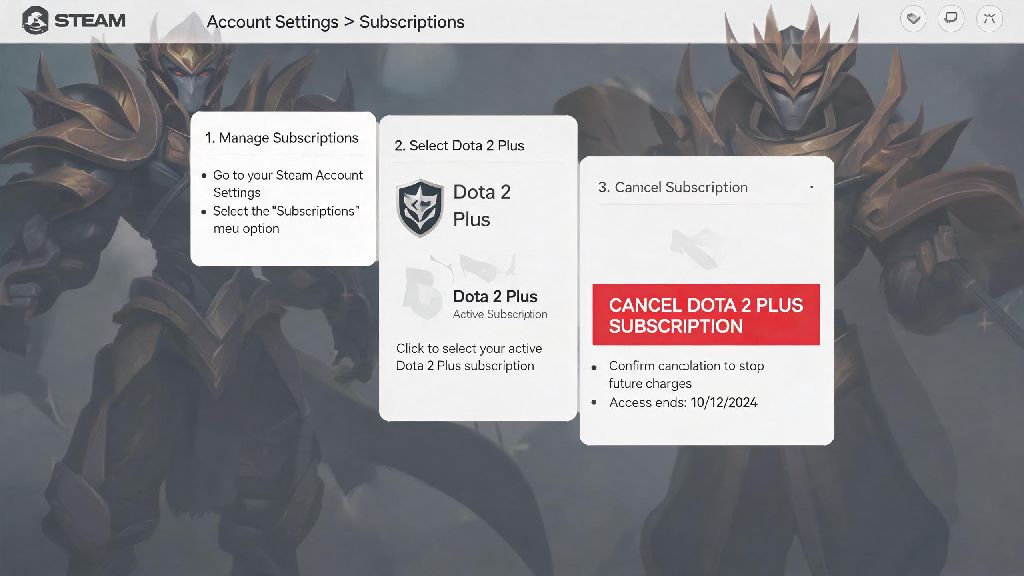
To start, open your Steam client and click on your profile name in the top right corner of the screen. Select “Account details” from the dropdown menu, then scroll down until you see the “Store & Purchase History” section. Look for the “Subscriptions” line, then click “Manage subscriptions” next to it. You’ll see a list of all active subscriptions linked to your account, including Dota 2 Plus. Click “Edit” next to the Dota 2 Plus entry, then select “Cancel my subscription” and follow the on-screen prompts to confirm. Steam will ask you to select a reason for canceling, but you can pick any option you want – it won’t affect the processing of your request.
You’ll get a confirmation email from Steam as soon as your cancellation is processed, so save that email for your records in case you see an unexpected charge later. If you don’t see Dota 2 Plus listed in your subscriptions, that means you probably signed up through a different platform, so you’ll need to try one of the other methods below.
Canceling Dota 2 Plus on Mobile and Other Platforms
If you signed up for Dota 2 Plus through the Steam mobile app, or used a third-party payment platform like Apple App Store or Google Play, you can’t cancel through the desktop client. A lot of players run into this issue when they subscribe on their phone then try to cancel later on their computer, so don’t panic if you don’t see the subscription in your desktop account details.
For Steam mobile app subscriptions, open the app and tap the three-line menu icon in the top left corner. Select “Account” then “Account details”, then scroll down to the Subscriptions section just like you would on desktop. Tap “Manage” next to subscriptions, find Dota 2 Plus, and follow the prompts to cancel. If you subscribed through the Apple App Store, open your iPhone’s Settings, tap your name at the top, select “Subscriptions”, find Dota 2 Plus in the list, and tap “Cancel Subscription”. For Google Play subscriptions, open the Google Play app, tap your profile icon in the top right, select “Payments & subscriptions” then “Subscriptions”, find Dota 2 Plus, and cancel from there.
You can’t cancel third-party platform subscriptions through the Steam app or desktop client, so don’t waste time reaching out to Steam support if you paid through Apple or Google – you’ll have to contact their support teams if you run into issues with those cancellations. If you used a one-time gift card to pay for Dota 2 Plus, you don’t have to cancel at all, since it won’t auto-renew unless you add a recurring payment method later.
What to Expect After You Cancel Dota 2 Plus
Once your cancellation is confirmed, you don’t have to do anything else for the rest of your billing period. You’ll still have full access to all Dota 2 Plus perks until the end of the paid term, so you can keep earning rewards, using the stat overlay, and completing hero challenges as normal.
When your subscription expires, you’ll lose access to the exclusive plus perks, but you won’t lose any of the rewards you earned while you were subscribed. All the cosmetics, chat wheels, and hero levels you unlocked are yours to keep forever. Your past plus subscription history and earned rewards will stay linked to your account permanently, so if you decide to resubscribe later, you’ll pick up right where you left off, no progress lost.
A lot of players worry that canceling will affect their ranked progress or account standing, but that’s not the case at all. Canceling your subscription has no impact on your Dota 2 account standing, MMR, or existing cosmetics, so you don’t have to stress about losing anything you’ve worked hard for. If you change your mind within your current billing period, you can reactivate your subscription at any time without being charged extra, since you already paid for the current month.
Figuring out how to cancel Dota 2 Plus is way simpler than it seems at first, once you know where to find the right settings. You don’t have to contact support, fill out long forms, or jump through any complicated hoops to turn off auto-renewal. If you take a break from Dota 2 every few months like I do, getting in the habit of checking your subscriptions and canceling the ones you don’t use can save you a lot of money over time. And if you decide you miss the plus perks later, resubscribing only takes a couple of clicks, and all your progress will be waiting for you when you come back.