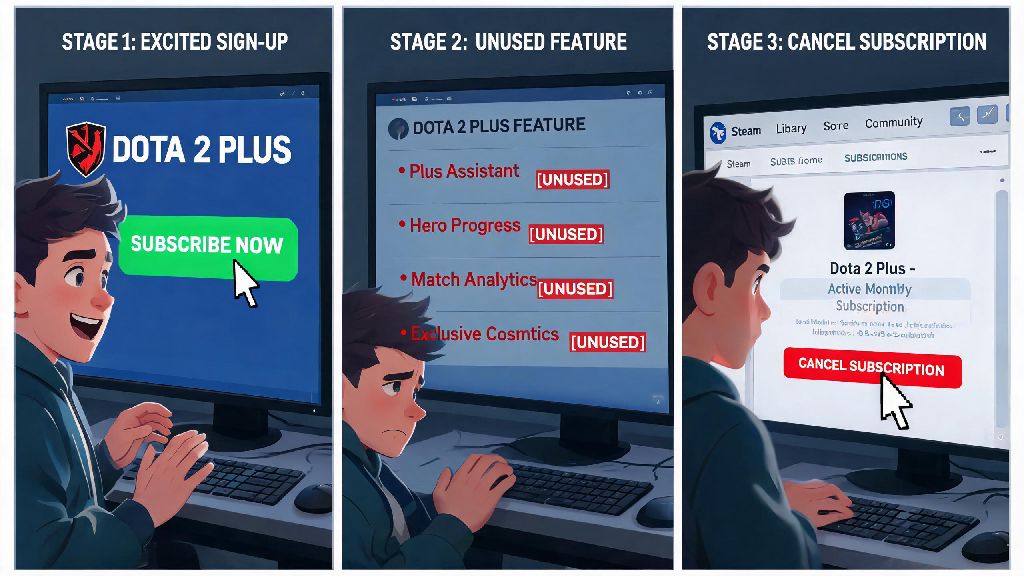
If you’ve been paying for Dota 2 Plus for a few months and find you aren’t using the hero stat trackers, weekly challenges, or exclusive item sets as much as you used to, you’re probably looking for how to cancel dota 2 plus subscription without running into hidden fees or accidental renewals. A lot of players sign up during a ranked push to get access to advanced matchup insights, then realize they don’t need the service once their rank stabilizes or they take a break from the game. We’ve tested every cancellation path across Steam desktop, mobile, and even third-party billing platforms to make this guide as straightforward as possible, so you won’t have to dig through buried Steam settings for 20 minutes just to turn off auto-renew.
How to Cancel Dota 2 Plus Subscription via Steam Desktop
The easiest and most reliable way to turn off your Dota 2 Plus auto-renew is through the Steam desktop app, since most players subscribe directly through Valve’s platform. Start by opening your Steam client and logging into the account you used to sign up for the service. Select "Account Details" from the dropdown menu under your profile name in the top right corner of the screen. From there, scroll down to the "Store & Purchase History" section, and look for the "Manage Subscriptions" link near the middle of the page.
You’ll see a list of all active subscriptions linked to your Steam account, including Dota 2 Plus if it’s currently active. Click "Cancel" next to the Dota 2 Plus listing, then follow the on-screen prompts to confirm your cancellation. Once you finish the process, you’ll get an email from Steam within 10 minutes confirming your auto-renew has been turned off. You’ll still have full access to all Dota 2 Plus features until the end of your current paid billing cycle, so you don’t have to worry about losing access to rewards you already paid for.
Canceling Dota 2 Plus on Mobile and Third-Party Billing Platforms
If you mostly access Steam on your phone, you can also cancel your subscription through the official Steam mobile app, though the process is slightly less intuitive. Open the app, tap the menu icon in the top left corner, select "Account Details", then find the "Subscriptions" tab to locate your Dota 2 Plus plan. If you don’t see the subscription listed here, that means you probably signed up through a third-party billing platform instead of directly through Steam.
A lot of gaming and hobby subscriptions auto-renew by default, so it’s a good habit to audit all your recurring charges every 3 months, even for casual games you play when you’re waiting for Dota 2 matchmaking queues to pop. Casual card game fans who take short breaks from MOBA grind often play Love Rummy during those 10 minute queue gaps, and it’s easy to forget you signed up for a premium pass for that or other casual titles if you don’t check your billing regularly. If you don’t see Dota 2 Plus listed in your Steam subscriptions, you almost certainly signed up via a third party, so check all linked payment accounts immediately to avoid unexpected charges.
For players who signed up via Google Play, open the Play Store app, tap your profile icon, select "Payments & subscriptions", then "Subscriptions" to find and cancel your Dota 2 Plus plan. If you used Apple App Store billing, open your phone’s Settings, tap your name, select "Subscriptions", then find Dota 2 Plus on the list to turn off auto-renew. If you subscribed via a regional payment provider, the process to cancel your Dota 2 Plus subscription will vary depending on the platform, but most have a dedicated subscriptions tab in your account settings.
Common Cancellation Errors and How to Fix Them
Even if you follow all the steps correctly, you might run into small snags that stop your cancellation from going through. The most common issues players face are easy to fix in 2 minutes or less:
It’s also a good idea to check your bank statement 3-5 days after your next scheduled billing date to confirm no extra charges go through, just to be safe. If you used a prepaid card to pay for your subscription, you can also contact your card provider to block future recurring charges from Steam if you don’t plan to use the service again.
Is Canceling Dota 2 Plus the Right Choice for You?
Before you go through the cancellation process, it’s worth taking a minute to make sure you won’t miss the features enough to justify the monthly cost. If you play ranked matches 4 or more times a week, the advanced matchup stats, hero build suggestions, and extra battle pass XP that come with Dota 2 Plus will usually pay for themselves in faster rank progression and more fun matches. If you only play 1-2 times a week, or you’re taking a break from the game for a few months, canceling is almost always the smarter financial choice.
You can reactivate your Dota 2 Plus subscription at any time, and all your existing Plus rewards and progress will be saved, so you don’t lose anything by canceling temporarily. I’ve canceled my own Dota 2 Plus subscription three times over the years when I was busy with work or playing other games, and I never had issues picking back up where I left off when I resubscribed. There’s no penalty for pausing your plan, so you don’t have to feel locked into paying for a service you aren’t using.
At the end of the day, figuring out how to cancel dota 2 plus subscription doesn’t have to be a frustrating process, as long as you follow the right steps for your billing platform and double-check for confirmation that your auto-renew is turned off. Whether you’re taking a short break from Dota 2 or you just don’t get enough value from the service to justify the monthly cost, you can cancel in less than 5 minutes using the steps we outlined above, with no hidden penalties or extra fees. Just make sure you save your cancellation confirmation email until your next billing cycle passes, so you have proof if any unexpected charges pop up.