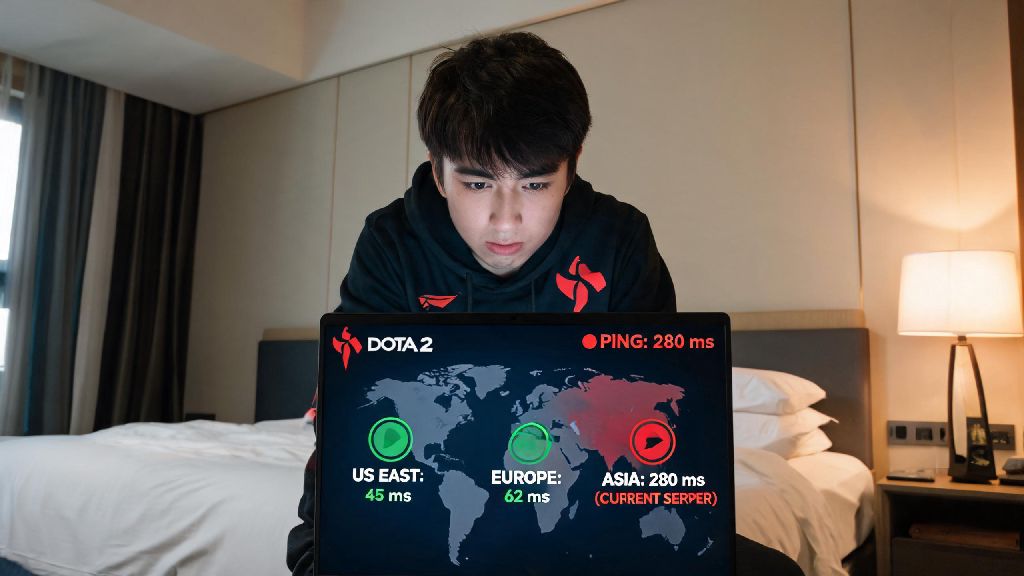
Last month I was traveling for work and tried to queue for a Dota 2 match from my hotel room, only to get a 280ms ping that made me miss every single Mirana arrow I fired. I thought I was stuck playing unranked only for the rest of my trip, until I remembered I could switch to a closer regional server. If you’ve ever dealt with crippling lag, long queue times, or wanted to queue with friends who live in another part of the world, knowing how to change server in Dota 2 can completely transform your gameplay experience. We’ve tested every method across PC, Mac, and Steam Deck to pull together this no-fluff guide, no third-party tools required.
Why Switching Your Dota 2 Server Makes a Difference
Most players stick to the default server Steam auto-selects when they first launch the game, but that choice is rarely the best option for your specific connection or play needs. The auto-select tool prioritizes geographic proximity above all else, and it doesn’t account for overloaded servers, ISP routing issues, or your desire to play with friends in other regions. Even if you’ve never messed with your game settings before, learning how to change server in Dota 2 takes less than two minutes, and the payoff is huge for your overall gameplay experience.
Common reasons players adjust their server settings include:
You don’t have to worry about losing any progress when you switch servers, either. All your account data, including MMR, item inventory, and battle pass progress, is tied to your Steam account, not the specific server you play on. The only thing that changes is the pool of players you match with and the connection quality to the game host.
How to Change Server in Dota 2: 2 Simple Official Methods
Valve has made switching servers extremely straightforward, and there are two official methods you can use depending on whether you can access the in-game menu or not. Neither method requires you to download any extra software, and both are 100% safe for your account.
The first method is the in-game setting adjustment, which works for most players. Open Dota 2 and click the gear icon in the top left corner to open the settings menu. Navigate to the “Game” tab, then select “Region” from the submenu list. You’ll see a full list of all available regional servers, each with a real-time ping test result next to it. Tick the box next to the server or servers you want to queue for, and untick any servers you don’t want to use. You can select up to three servers at a time to widen your matchmaking pool if you don’t mind slightly higher ping for shorter queue times.
The second method is for players who can’t open Dota 2 at all due to server connection issues. Open your Steam launcher, go to your Library, right click on Dota 2, and select “Properties” from the dropdown menu. Navigate to the “General” tab, find the “Launch Options” text box, and type in +ping_filter 1 +region [your desired region code]. This forces Dota 2 to connect only to your selected region when it launches, which bypasses any auto-select routing errors. If you’re still not sure how to change server in Dota 2 after following these steps, you can reach out to Steam support for further help, but most players get it right on the first try.
One important note here: using a third-party VPN to switch servers can lead to account restrictions if Valve detects you’re falsifying your location to get around region locks for tournaments or limited-time events. Stick to these official methods unless you’re using a VPN for legitimate travel purposes and are not accessing restricted content.
Key Factors to Consider Before Switching Servers
Before you jump into ranked play on a new server, there are a few things you should test and prepare for to avoid frustration. First, ping consistency is far more important than raw ping number. A 70ms ping that never spikes is way better than a 40ms ping that jumps to 200ms every 10 seconds. Play 2 to 3 unranked matches first to confirm your connection is stable before you risk losing MMR.
You should also prepare for differences in playstyle across regions. For example, SEA servers are known for more aggressive, gank-heavy gameplay, while EU West servers tend to have more structured, macro-focused play. I switched to EU West for a month last year to play with my college friends who live in Germany, and I had to adjust my playstyle drastically to stop feeding early game. Before you jump into ranked after you learn how to change server in Dota 2, take 10 minutes to play a couple of unranked matches to test the connection and get used to the server’s playstyle.
Language barriers are another thing to keep in mind. If you switch to a server where most players speak a language you don’t know, you might have trouble coordinating with your team, which can hurt your win rate in ranked games. You can adjust your in-game language settings to match the server's most common language to make communication easier, but it’s still something to prepare for if you rely heavily on text or voice chat during matches.
Common Server Switch Issues and Quick Fixes
Even if you follow the steps perfectly, you might run into small issues when you switch servers for the first time. The most common issue is still getting high ping after switching to a closer server. Restart your router first, that fixes 80% of routing issues between your ISP and the game server. If that doesn’t work, make sure you don’t have any downloads running in the background, or other devices on your network streaming 4K video or taking up bandwidth.
Another common issue is not seeing the server you want to switch to in the region list. That usually happens if Valve is running maintenance on that specific server, or if your IP address is flagged as being from a region that’s blocked for security reasons. Most maintenance windows only last 1 to 2 hours, so wait a little while and check again later. If the server still doesn’t show up, you can check the official Dota 2 server status page for updates on outages.
If you notice your queue times are way longer than expected after switching, that’s usually because you picked a smaller region or are playing during off-peak hours for that region. Try adding 1-2 nearby servers to your selected pool to cut down queue times without sacrificing too much ping. For example, if you’re playing on US West and queue times are long, you can add US West and US Northwest to your list to widen your player pool without adding more than 20ms to your average ping.
At the end of the day, small tweaks to your game settings can make a way bigger difference to your win rate than memorizing every hero’s skill cooldown. Knowing how to change server in Dota 2 lets you avoid unnecessary lag, play with all your friends no matter where they live, and even cut down the time you spend waiting in queues. Don’t be afraid to test a few different servers to find the one that fits your playstyle and connection best, and remember to stick to official methods to keep your account safe. Next time you log in and see your ping spiking, you’ll know exactly what to do instead of suffering through another unplayable match.