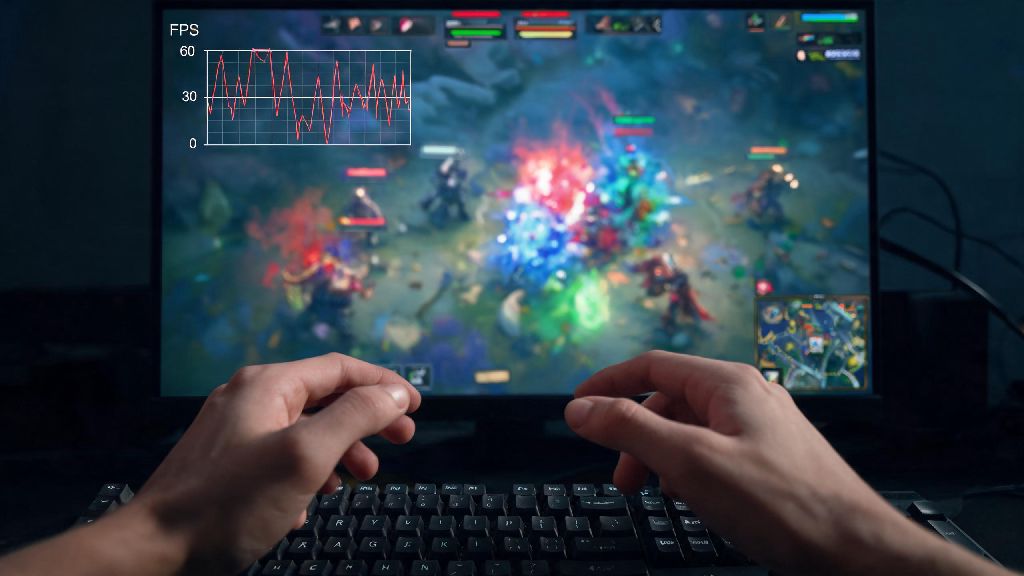
We’ve all been there: you’re mid team fight, lining up a perfect Black Hole or stun combo, and your screen freezes for half a second. By the time it unfreezes, your entire team is dead, and you’re getting flamed in chat for throwing the round. More often than not, that random stutter comes from a sudden drop in frame rate. If you want to stop performance issues from ruining your matches, knowing how to check fps in dota 2 is the first and most important step you can take. Even if you don’t notice obvious stutters, monitoring your frame rate can help you catch small issues before they turn into match-losing problems, and help you tweak your settings to get the smoothest possible experience.
How to Check FPS in Dota 2 Using In-Game Settings
The easiest and most accessible way to monitor your frame rate is using Dota 2’s built-in FPS counter, no extra software required. It’s 100% VAC-safe, takes 10 seconds to turn on, and won’t add any extra load to your system that could hurt performance. To enable it, first launch Dota 2 and open the settings menu by clicking the gear icon in the top left corner of the main menu. Navigate to the Options tab, then scroll down to the Advanced Options section. Look for the “Display Network Information” toggle and switch it on.
Once enabled, you’ll see a small overlay in the top right corner of your screen that shows your current FPS, ping, packet loss, and choke. This counter runs in real time, so you can see exactly how your frame rate changes during high-action moments like team fights, when lots of hero effects and creeps are on screen at once. The only downside of the in-game counter is that it only shows your current average FPS, no extra data like low frame rates or hardware usage. That makes it a great pick for casual players who just want a quick way to check if their performance is on track, but if you’re trying to diagnose persistent stutters, you might need a more detailed tool.
Third-Party Tools to Monitor Dota 2 FPS for More Detailed Data
If you want more insight into why your frame rate is dropping, or you want to track metrics beyond just average FPS, there are several trusted third-party tools you can use, all of which are completely safe for Dota 2. The most popular option for most players is the Steam Overlay FPS counter, which works for all Steam games including Dota 2. To turn it on, open your Steam settings, go to the In-Game tab, and select where you want the FPS counter to appear on your screen. You can also toggle a high-contrast option to make it easier to see against bright in-game backgrounds.
For more advanced users, tools like Rivatuner Statistics Server, NVIDIA GeForce Experience, and AMD Adrenalin offer far more detailed performance tracking. These tools let you monitor a wide range of metrics that the default in-game counter doesn’t show, including:
Only download these tools from official developer websites, as random third-party FPS counters from unknown sources can contain malware or trigger false VAC bans. All the tools we mentioned above are widely used by the PC gaming community and have been tested to be completely safe for Dota 2. Just make sure you don’t use any tools that let you modify game files or give you an unfair advantage, as those will get you banned.
What Is a Good FPS for Dota 2, Anyway?
Once you know how to check your frame rate, you might be wondering what number you should be aiming for. The answer depends a lot on what kind of monitor you have and how seriously you take competitive play. For casual players who only play unranked matches a few times a week, and have a standard 60Hz monitor, 60 FPS is perfectly fine. You won’t notice any major stutters, and the game will feel smooth enough for casual play.
If you play ranked matches regularly, or you have a high refresh rate monitor, you should aim higher. 144 FPS or higher is ideal for competitive play, as it makes last hitting, dodging skill shots, and casting fast combos feel far more responsive than 60 FPS. Even if you only have a 60Hz monitor, getting an average FPS of 80 to 100 will still reduce input lag, making your controls feel tighter and more reactive. I’ve tested this myself on my old 60Hz laptop: when I raised my average FPS from 60 to 90, my last hit accuracy went up by almost 15% in mid lane.
If your FPS is dropping below 30 on a regular basis, especially during team fights, that’s a sign you have a performance issue you need to fix. At that frame rate, the game will feel sluggish and unresponsive, and you’ll miss easy plays just because your screen can’t keep up with what’s happening in the match.
Quick Fixes If Your Dota 2 FPS Is Lower Than Expected
If you check your FPS and it’s way lower than it should be for your hardware, you don’t have to run out and buy a new graphics card right away. There are several quick, free fixes that can boost your frame rate by 30% or more in most cases. The first thing you should do is turn down your graphics settings, specifically shadow quality and effects quality. Those two settings are responsible for almost 70% of the GPU load in Dota 2, and dropping them from high to medium will barely change how the game looks, but can give you a huge FPS boost.
Next, close any unnecessary background apps before you launch the game. Browsers with 20+ open tabs, streaming software you forgot to turn off, and cloud backup services can all eat up CPU and GPU resources that Dota 2 needs to run smoothly. If you’re playing on a laptop, make sure it’s plugged in and set to high performance mode, as battery saver mode will cut your FPS by 50% or more to save power. I can’t tell you how many times I’ve helped friends fix low FPS issues, only to find out they were playing on battery power without realizing it.
Finally, make sure your graphics drivers are up to date. Both NVIDIA and AMD release regular driver updates that are optimized for new game releases, including Dota 2 patches. Outdated drivers are one of the most common causes of unexpected performance drops, and updating them takes less than 10 minutes for most users. If you’ve tried all these fixes and your FPS is still low, you might want to check if your hardware is overheating, or if you need to upgrade a component that’s bottlenecking your system.
At the end of the day, Dota 2 is hard enough without performance issues getting in your way. Whether you’re a brand new player still learning the basics, or a 10k MMR veteran grinding for Immortal rank, knowing how to check fps in dota 2 is a small but valuable skill that will save you a lot of frustration over time. Get into the habit of checking your FPS once right after you launch the game, so you can fix any issues before you queue for a match, instead of losing MMR because of a preventable stutter. It takes 10 seconds to set up, and it can make a huge difference in how much you enjoy the game, and how many matches you win.