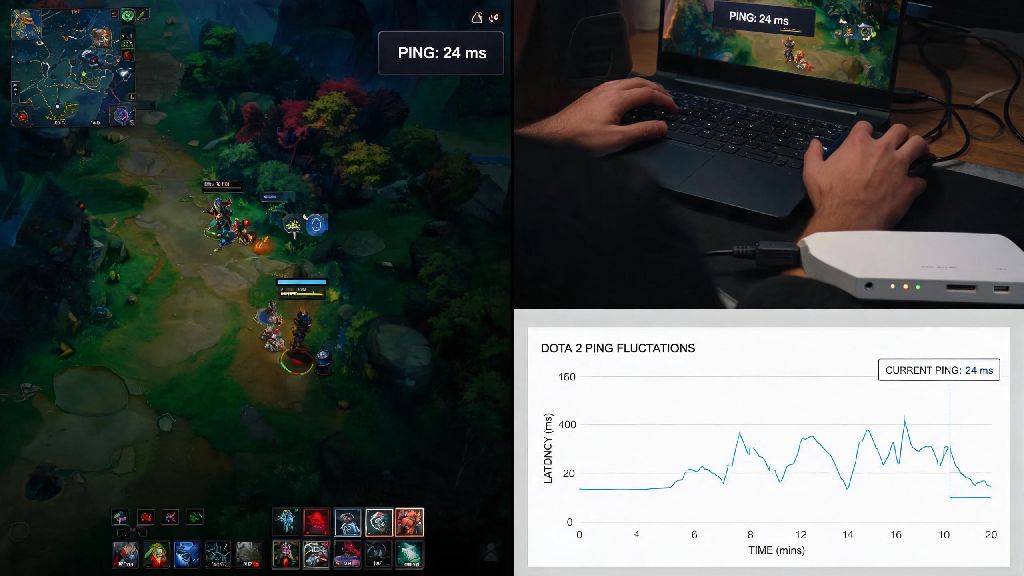
If you’ve ever missed a last hit by a fraction of a second, fumbled a skill shot that should have landed, or got stuck rubber banding across the map mid team fight, you know how frustrating high latency can be in Dota 2. I lost 120 MMR in a single ranked match last year because I didn’t realize my internet was spiking before I queued up, and that mistake taught me how important it is to stay on top of your connection health. Knowing how to check ping in Dota 2 is one of the most basic, high-impact skills every player should have, no matter if you’re a new Herald player or a seasoned Immortal grinding for leaderboard spots. It only takes a few seconds, and it can save you from hours of frustration and lost MMR down the line.
How to Check Ping in Dota 2 Using In-Game Tools
The fastest, most accurate way to see your live ping is right inside the Dota 2 client, and you have two easy options to choose from depending on how often you want to see the data. The first option is a temporary check that works while you’re in a match: just press the Tab key to pull up the scoreboard, and you’ll see a small ping number next to your username in the top right corner of the scoreboard. This works great for a quick check if you’re noticing odd lag mid game, but it only shows you a snapshot of your ping at that exact moment, not fluctuations over time. Always enable the permanent network display if you play ranked matches regularly, as it lets you track ping spikes and packet loss in real time without having to open the scoreboard.
To turn on the permanent network display, open the Dota 2 settings menu by clicking the gear icon in the top left corner of the main client. Head to the Options tab, then click Advanced Options at the bottom of the page. Scroll down until you see the “Display Network Information” toggle, and switch it on. Once enabled, you’ll see a small box in the top right corner of your screen at all times, showing your current ping, FPS, packet loss percentage, and server choke. The ping value shown is the round-trip time between your device and the Dota 2 server, measured in milliseconds, so lower numbers always mean faster response times. You can drag the network box to any corner of your screen if it blocks your view of in-game elements like the minimap or item shop.
External Methods to Test Your Dota 2 Ping Before Launching the Game
You don’t have to wait until you’re loaded into a match to check if your connection is stable enough for Dota 2. External ping tests are perfect if you just switched internet providers, restarted your router, or are playing on a new network for the first time. These tests take less than a minute to run, and they let you avoid wasting 10 minutes queuing for a match only to find out your ping is too high to play competitively. Testing your ping before queuing for a match can save you from losing MMR due to unexpected latency spikes that you would have otherwise not known about until you were already in the draft phase.
The most reliable external test uses your device’s built-in command line tool to ping official Dota 2 server addresses directly. You don’t need any third party software to run this test, and it gives you extremely accurate results that match what you’ll see in the game itself. Here’s how to run the test in three simple steps:
If you don’t want to mess with command line tools, you can also use popular speed test websites that have dedicated gaming server tests for Dota 2. These tools will automatically connect to the nearest Dota 2 server in your region and show you your average ping, jitter, and packet loss in a simple visual format. Keep in mind that these third party tests are slightly less accurate than the direct command line test, but they’re more than good enough for a quick check before you launch the game.
What Your Dota 2 Ping Results Actually Mean for Gameplay
Many new players see a ping number and have no idea if it’s good or bad, so let’s break down what different ranges mean for your actual in-game performance. First, it’s important to remember that ping is a measure of delay, so even a 20ms difference can have a noticeable impact on how responsive your hero feels. You don’t need the absolute lowest ping in the world to climb ranks, but staying below a certain threshold will make the game feel much more fair and responsive.
A ping value below 60ms is ideal for competitive ranked play, as it gives you the fastest possible response time for skill shots and team fights. If you’re playing on 30ms or lower, you’ll barely notice any delay at all between clicking a button and your hero acting, which is perfect for landing skill shots like Mirana’s Arrow or Pudge’s Hook. Between 60ms and 100ms, you’ll notice a very slight delay, but it’s not enough to impact most casual play, and you can still climb ranks just fine if you’re used to it. Once you hit 100ms or higher, you’ll start to see noticeable lag: your abilities will take longer to cast, your movement will feel sluggish, and you’ll miss last hits that you should have easily gotten.
Don’t just fixate on your ping number alone, either. Packet loss, which is also shown in the in-game network display, is just as important for smooth gameplay. Even if your ping is 40ms, if you have 5% packet loss, you’ll still experience rubber banding, missed inputs, and random disconnections. High ping is not always caused by your internet connection – sometimes overloaded Dota 2 servers during peak hours can be the culprit, so if every player in your match has high ping, the issue is on Valve’s end, not yours.
Quick Fixes for High Dota 2 Ping You Can Try Right Now
If you check your ping and find it’s higher than normal, there are a few simple fixes you can try before you give up on playing for the day. Most high ping issues are caused by easy to fix problems with your home network, not issues with Valve’s servers or your internet provider. I’ve used all of these fixes myself over the years, and they’ve saved me from canceling multiple ranked grind sessions when my connection was acting up.
First, switch from Wi-Fi to a wired ethernet connection if you can. Wired ethernet connections are 2-3 times more stable than Wi-Fi for online gaming, even if your Wi-Fi speed test shows fast download rates. Wi-Fi signals get interrupted by walls, other devices on your network, and even microwave ovens, so a wired connection eliminates all of that interference instantly. If you can’t run an ethernet cable to your gaming device, try moving your router closer to your desk, or disconnect other devices from your Wi-Fi network while you play.
Next, close all background apps that use internet bandwidth while you’re playing. Streaming services like Netflix, Hulu, or Twitch, file download tools, and even cloud backup services can eat up bandwidth and cause ping spikes. If you share your internet with other people in your house, ask them to hold off on streaming or downloading large files while you’re in a ranked match. You should also make sure you’re connected to the closest Dota 2 server in your region: you can check your selected server in the Dota 2 settings under the “Play” tab. Playing on a server across the country will automatically add 50ms or more to your ping, even if your internet is perfect.
If none of these fixes work, try restarting your router and modem. Most people leave their routers running for months at a time, and small software glitches can build up over time that cause slow speeds and high latency. Unplug both your router and modem, wait 30 seconds, then plug them back in and wait two minutes for them to fully reboot. This fixes 90% of random high ping issues that aren’t caused by ISP outages or server problems.
At the end of the day, small quality of life adjustments like monitoring your connection health add up to big wins over time. You don’t need fancy gaming routers or expensive internet plans to play Dota 2 well, but you do need to stay on top of basic checks to make sure you’re not playing at a disadvantage. Taking 10 seconds to know how to check ping in Dota 2 before you queue up will help you avoid unnecessary losses, reduce frustration, and make every match feel fair and fun. Next time you log on to grind MMR, run a quick ping check first – you’ll be glad you did.