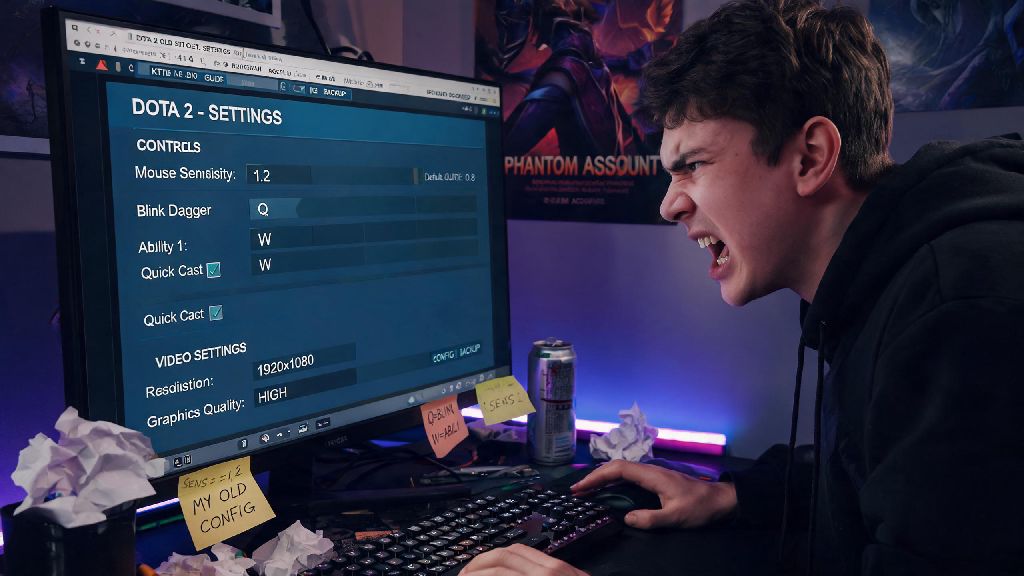
If you’ve ever made a smurf account to play with lower-ranked friends, or switched to a new main account after losing access to your old one, you know how soul-crushing it is to rebuild all your Dota 2 settings from scratch. I once spent 45 minutes rebuilding my settings on a new smurf right before a scheduled 5-stack with my college friends, and missed the first two matches of the night. That’s the last time I ever set up an account from scratch. Spending half an hour tweaking hotkeys, video settings, chat filters, and last-hit prompts just to get back to the feel you’re used to is not how anyone wants to spend their gaming time. That’s why knowing how to copy Dota 2 settings to another account is one of the most useful quality-of-life tricks every regular player should have in their back pocket. I’ve tested every possible method for this over 8 years of playing Dota 2, from sketchy third-party tools to hidden in-game features, and I’m breaking down only the safe, working methods that won’t get you account banned or corrupt your config files.
Prep Work You Need to Do Before Transferring Your Settings
First, you need to make sure your source account’s settings are fully saved and synced to the Steam cloud, and that you have access to both accounts you’re transferring between. You don’t want to start the process only to find half your hotkeys didn’t save because you skipped a sync step. While there are dozens of random tutorials online claiming to show you how to copy Dota 2 settings to another account, most skip this critical prep step, leading to corrupted files or missing settings after transfer. I’d recommend launching Dota 2 on your source account first, opening the settings menu, and clicking the “Export Settings” button in the top right corner of the settings panel to save a local backup file. That way, even if something goes wrong with the cloud sync, you still have a copy of your perfect setup.
Also, make sure you don’t have any custom mods or skin changers installed before you do the transfer. Those can mess with your config files, and if you transfer them to a new account, you might accidentally trigger a VAC ban, even if the mod is only for visual changes on your end. I’ve seen this happen to a teammate who transferred a config with a custom ward skin mod to his smurf, and he lost access to both accounts a week later. It’s not worth the risk, so uninstall any non-official mods before you start the transfer process.
How to Copy Dota 2 Settings to Another Account Using In-Game Tools
The safest, most official method for transferring your settings uses built-in Dota 2 and Steam features, so you don’t have to mess with hidden system files or download any third-party software. This is the method I recommend for 90% of players, because it’s almost impossible to mess up and carries zero ban risk. It works for all standard settings, including hotkeys, video presets, chat filters, minimap preferences, and in-game audio settings. The full process only takes 2 to 3 minutes total, and you don’t need any technical knowledge to pull it off.
That’s all there is to it for most cases. But if you have custom auto-exec files or advanced config tweaks that don’t transfer with the in-game export tool, you’ll need to use the manual file transfer method instead. I’ve seen a lot of players run into issues here if they have custom last-hit sound effects or camera distance tweaks that aren’t included in the standard export file, so don’t panic if those don’t show up right away. The manual method will catch those extra customizations.
Manual Config File Transfer for Advanced Custom Setups
If you’re a more experienced player who has edited your autoexec.cfg file or added custom scripts to your Dota 2 install, the in-game import/export tool won’t catch all of your changes. For those cases, you can manually move the config files from your source account’s Steam folder to your target account’s folder. This method is a little more technical, but it’s still very safe as long as you follow the steps carefully. First, you’ll need to find your Steam user data folder. On Windows, this is usually located in C:\Program Files (x86)\Steam\userdata. On Mac, it’s in ~/Library/Application Support/Steam/userdata.
Each folder in this directory is named after a Steam account ID, so you’ll need to figure out which ID matches your source account and which matches your target account. You can find your Steam ID by checking your account profile URL if you don’t already have it written down. Once you find the source account’s folder, open the 570 folder (that’s Dota 2’s Steam app ID) and copy the cfg folder inside. Paste this folder into the 570 folder of your target account’s user data folder, and choose to overwrite any existing files when prompted.
A quick warning here: If you have any scripts that violate Dota 2’s terms of service, like auto-cast or last-hit scripts, transferring them to your new account can get you banned if Valve detects them. Only transfer files you know are 100% compliant with the game’s rules to avoid losing access to your new account. You’ll also want to turn off Steam cloud sync for Dota 2 on both accounts before you do this manual transfer, otherwise Steam might overwrite your new files with old cloud saves when you launch the game. You can turn cloud sync back on after you confirm the settings are working correctly on the target account.
Common Mistakes to Avoid When Transferring Your Settings
Even if you follow the steps perfectly, there are a few common pitfalls that can cause your settings to not transfer correctly, or even cause issues with your game install. The first mistake I see all the time is players forgetting to restart their game after importing settings. A lot of Dota 2’s settings, especially video and input settings, don’t apply until you fully close and relaunch the game, so don’t skip that step. I’ve had friends complain that their hotkeys didn’t transfer, only to realize they never closed the game after importing the file.
Another common mistake is transferring settings between accounts on different operating systems. If you play Dota 2 on Windows on your main account and Mac on your smurf, the config files aren’t fully compatible, and you’ll probably run into glitches if you try to transfer them directly. You’re better off using the in-game export tool for cross-OS transfers, because it automatically adjusts for platform differences.
You also don’t want to copy your entire 570 folder, only the cfg folder. The other folders in the 570 directory contain game files, replay saves, and other data that’s tied to your specific account, and transferring those can cause crashes or account flags. Stick to only transferring the cfg folder when doing manual transfers to avoid these issues. I’ve also had players reach out to me saying their settings reset every time they log out of the new account, which is almost always caused by Steam cloud sync being turned on. If that happens to you, go to your Steam library, right click Dota 2, select Properties, and uncheck the “Enable Steam Cloud Sync for Dota 2” box before re-importing your settings.
At the end of the day, you don’t have to waste hours reconfiguring every single setting every time you make a new Dota 2 account. Whether you’re using the simple in-game import tool for a basic setup or moving custom config files for an advanced playstyle, knowing how to copy Dota 2 settings to another account will let you jump straight into matches without wasting time on setup. Just remember to only use safe, official methods, avoid transferring any non-compliant scripts, and double check your settings after transfer to make sure everything feels exactly the way you’re used to. Next time you make a smurf to play with your new to Dota friends, you’ll be able to get into your first match in 2 minutes instead of 30.