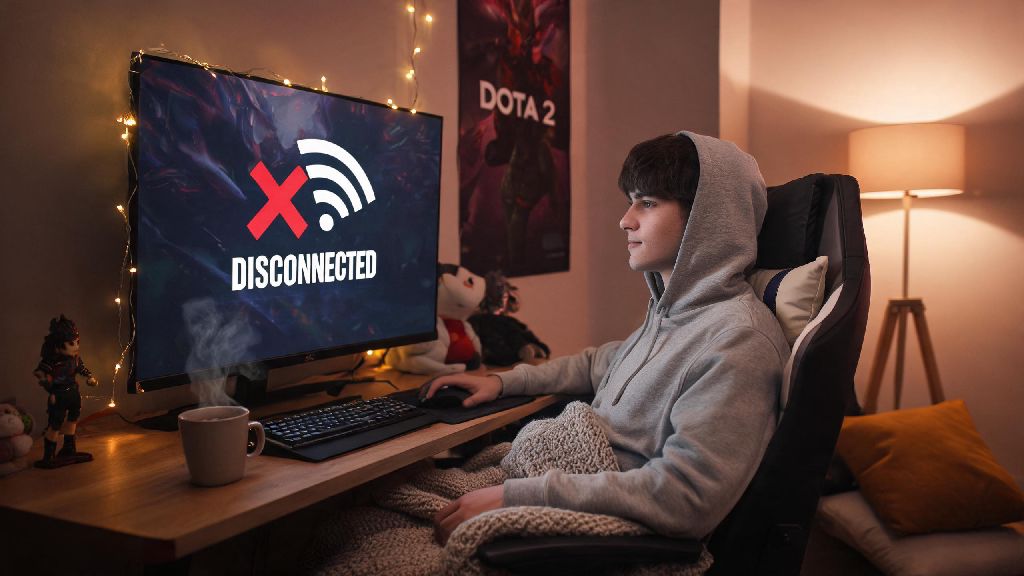
We’ve all been there: you boot up Dota 2 ready to mess around with a new offlaner in unranked, and instantly get three separate invites from friends begging you to join their ranked grind. You don’t feel like explaining you don’t want to risk losing MMR after a long day, or that you’re still getting the hang of Mars’ spear timing and don’t want to let a team down. That’s where knowing how to appear offline in dota 2 changes everything. It’s a simple quality of life tweak that lets you play on your own terms, no awkward excuses required.
Why Would You Want to Appear Offline on Dota 2?
Plenty of players write off offline status as an anti-social feature, but it’s actually one of the most useful tools for keeping your gaming experience low-stress. Most players use it for completely reasonable reasons that have nothing to do with avoiding friends on purpose. For example, if you just dropped 400 MMR in a brutal losing streak, you might not want to get roped into another competitive game before you’ve cooled off.
Other common use cases include practicing high-skill heroes without judgment – no one wants their clan mates making fun of them for missing 10 Meepo poofs in a row. You might also want to take a break from team or guild obligations if you’re part of a semi-competitive group that expects you to join scrims every time you log on. Even casual players benefit from it, especially if you get spammed with invites from random people you added one time at a LAN party and never talked to again.
It’s not about being rude. It’s about setting boundaries so you can actually have fun when you play, instead of feeling like you have to perform for other people every time you launch the game. Most of your friends will understand, too – they’ve probably used the feature themselves when they wanted a quiet game.
Step-by-Step: How to Appear Offline in Dota 2
Dota 2’s online status is tied directly to your Steam account, so most of the settings you’ll use are managed through the Steam client rather than in-game menus. The process takes less than 30 seconds once you know where to look, and you can switch back to online mode just as quickly whenever you want.
First, open your Steam client and click the “Friends” menu in the top navigation bar. Select “Friends List” from the dropdown, then click the small arrow next to your profile name at the top of the friends list. You’ll see several status options to choose from, each with different use cases. We’ve broken down the pros and cons of each below to help you pick the right one for your needs:
If you want an extra layer of privacy, you can also adjust your in-game Dota 2 settings to hide your match history and current game activity. Go to the settings menu, click the “Social” tab, and toggle off the options that let other people see your current game and past match results. That way, even if someone stumbles on your profile, they won’t be able to see what you’re playing.
Steam invisible mode is the best all-around choice for most players. It doesn’t limit your access to any game features, and it’s completely seamless – your friends will never know you’re online unless you choose to message them first. Just remember that if you join a public custom lobby, other players in that lobby will still be able to see your username, even if you’re on invisible mode.
Common Mistakes to Avoid When Setting Offline Status
Even if you follow the steps correctly, there are a few common slip-ups that can accidentally reveal you’re playing Dota 2 when you meant to stay hidden. The most common one is forgetting that third-party apps can sync your game status, even if you’re set to invisible on Steam. Discord, for example, will automatically show that you’re playing Dota 2 to all your Discord friends unless you turn off game activity sync in your Discord settings.
Another mistake is leaving your Steam profile set to public. Even if you’re on invisible mode, people can check your “Recently Played” games on your Steam profile and see that you’ve been playing Dota 2. Set your Steam profile activity to friends-only or private if you don’t want people to see your gaming activity when you’re offline.
Some players also assume that turning off their in-game friends list is enough to hide their status, but that’s not true. Your friends will still see you as online and playing Dota 2 on their own friends lists, even if you can’t see them on yours. That’s a common mistake new players make, and it usually leads to awkward messages asking why you’re ignoring invites.
If you’re playing on a shared computer or a PC at a gaming café, always remember to log out of your Steam account completely when you’re done. If you just close the game without logging out, the next person who uses the computer might be able to access your account, and your friends will see you as online even if you’re not the one playing.
What to Do If Your Offline Status Isn’t Working?
Sometimes Steam glitches and your status won’t update correctly, even if you’ve set it to invisible. The first fix to try is restarting your Steam client completely – don’t just minimize it, close it fully and open it again. That usually resolves any sync issues between your account and Steam’s servers.
If that doesn’t work, check if you’ve accidentally set your status to “Away” instead of “Invisible”. Away status still shows that you’re online, just not active at your computer, so your friends will still be able to send you invites. It’s an easy mix-up, since the two options are right next to each other in the status menu.
If you’re still showing as online to friends, check for active Steam downloads or updates running in the background. Sometimes Steam will hold off on updating your status until all downloads are complete, especially if you have a slow internet connection. Pause any active downloads and wait 30 seconds, then check your status again.
I ran into this issue myself a few months ago, where I was set to invisible but my roommate kept sending me invites. I eventually realized I had linked my Steam account to my phone’s Steam app, and the app was glitching and showing me as online. Logging out of the mobile app fixed the problem immediately, so that’s another thing to check if you’re having issues.
Learning how to appear offline in Dota 2 is such a small change, but it makes a huge difference in how much you enjoy the game. You don’t owe anyone an explanation for wanting to play alone, practice a new hero, or just avoid ranked grind for a night. Take a minute to adjust your settings next time you launch the game, and you’ll never have to make up an excuse for why you can’t join a party again. At the end of the day, Dota 2 is supposed to be fun – and playing on your own terms is the best way to keep it that way.