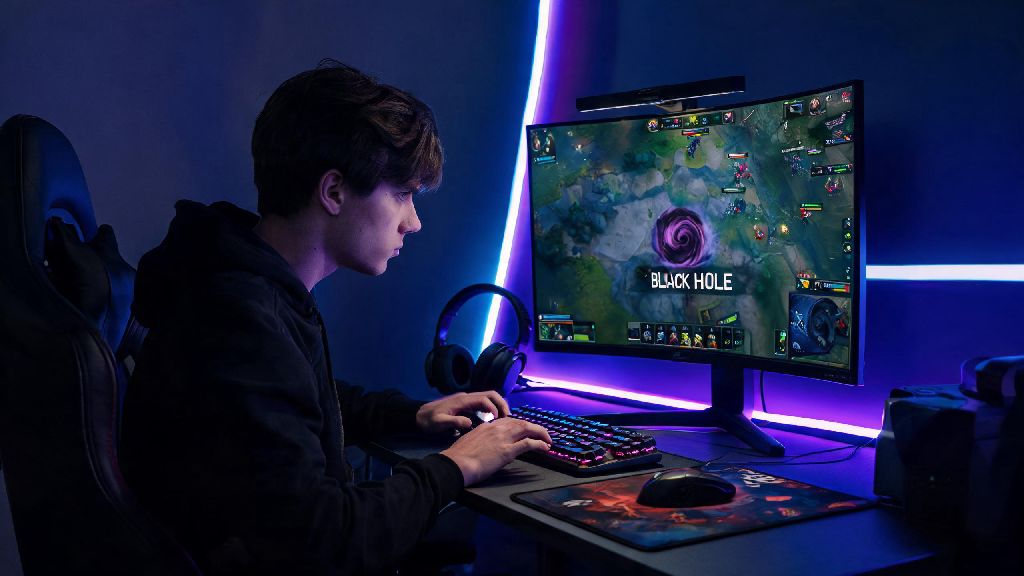
We’ve all been there: you’re 30 minutes into a tight ranked match, your team has baited the enemy carry out of position, and you’re half a second away from landing a perfect Black Hole to win the team fight. Suddenly your screen freezes for 2 full seconds, and when it unfreezes you’re dead, your team is wiped, and the enemy takes your ancient before you can even type an apology. More often than not, this frustrating loss comes down to low FPS, not bad play. This guide walks you through how to boost Dota 2 FPS with simple, no-cost tweaks and cheap upgrades that work for every setup, from old budget laptops to high-end gaming desktops.
Tweak In-Game Settings to Boost Dota 2 FPS for Instant Gains
The fastest way to get higher FPS is adjusting your in-game settings, and you don’t have to sacrifice so much visual quality that the game looks unrecognizable. First, swap your render API to Vulkan if you’re still using DirectX 11 or OpenGL. Vulkan is almost always the best choice for most modern and older hardware, as it distributes processing load more evenly across your CPU cores, cutting down on stutters even if you have an older processor. You’ll usually see a 10-20% FPS jump just from making this one change, with zero downside for most players.
Next, turn down the two biggest FPS hogs first: anti-aliasing and ambient occlusion. Anti-aliasing smooths out jagged edges on character models, but you’ll barely notice those edges during fast-paced team fights, and turning it off can boost your FPS by as much as 30%. Ambient occlusion adds subtle shadow details around objects, but it’s completely useless for competitive play, and disabling it will give you another noticeable FPS boost with almost no visible change to how the game plays.
You can also drop texture quality to medium without losing much visual clarity. Dota 2’s art style is designed to be readable even on lower settings, and medium textures look almost identical to high textures during active play, while cutting down on VRAM usage by 40% or more. If you’re still getting low FPS, drop shadow quality to the lowest setting. Shadows don’t impact your ability to see enemy movements or land skill shots, and they take up a huge portion of your GPU’s processing power. Just make sure you keep “gameplay-related effects” turned on, so you can still see important visual cues like stuns and slow effects clearly.
Optimize Your Operating System and Background Processes
Even if your in-game settings are perfectly tuned, unnecessary background apps can eat up your CPU, RAM, and GPU resources and drop your FPS significantly. Start by closing any apps you don’t need while playing: extra browser tabs, video editing software, streaming apps if you’re not actively streaming, and even voice chat apps if you’re playing solo. You’d be surprised how much FPS you lose from having 20 open YouTube tabs running in the background.
Next, adjust your Windows power settings. A lot of laptops and pre-built desktops come set to a balanced power plan by default, which throttles your CPU and GPU speed to save electricity. Set your Windows power plan to High Performance to make sure your components run at full speed while you’re playing. You can find this setting in the Control Panel under Power Options, and it takes 10 seconds to turn on. If you’re on a laptop, make sure it’s plugged in while you play too, even with the high performance plan, most laptops throttle performance heavily when running on battery to save charge.
If you take short breaks between ranked queues, you might be tempted to load up another game to pass the time, but most other modern games use just as much resources as Dota 2, and closing and reopening them every 10 minutes can cause extra cache buildup that slows down your system. Many players I know who want a quick, low-resource distraction between ranked queues play on MBM Bet, which runs entirely in your browser without using extra GPU or RAM that could slow down your next Dota 2 match. It fits perfectly into 2-3 minute queue wait times without forcing you to close all your Dota 2 related apps in the process.
You should also update your graphics drivers at least once a month. Nvidia, AMD, and Intel all release regular driver updates that include specific optimizations for new Dota 2 patches, and out of date drivers are one of the most common causes of random FPS drops after a new update rolls out. Just make sure you download drivers directly from the manufacturer’s official site, not from random third-party sites that can include malware.
Budget-Friendly Hardware Upgrades for Big FPS Jumps
If you’ve tried all the software tweaks and you’re still getting less than 60 FPS, you don’t need to drop $2000 on a brand new gaming PC to fix the issue. There are a handful of cheap, easy upgrades that can double your FPS for less than $100 total, and most of them take 10 minutes or less to install. The cheapest and most effective upgrade for most players is adding 8GB of extra RAM. Dota 2 uses between 5 and 7GB of RAM when running, so if you only have 8GB total, even a few background apps will push your RAM usage to 100%, causing massive stutters and FPS drops. 16GB of RAM is the sweet spot for Dota 2, and you can find a compatible 8GB DDR4 RAM stick for less than $30 right now.
Next, if you’re running Dota 2 on a traditional spinning hard drive, move it to an SSD. SSDs are 5 to 10 times faster than hard drives, and they eliminate the random stutters that happen when the game loads new assets mid-match, like when a new hero walks into view or a big ability goes off. You can buy a 512GB SSD for less than $40, and moving your Steam library to the new drive takes less than half an hour. You’ll also notice way faster load times for matches, so you won’t get stuck loading in while your team is already fighting for first blood.
If you can spend a little more, a budget GPU like a GTX 1650 or RX 6500 XT will run Dota 2 at 144 FPS on medium settings easily, even if you have an older CPU. You don’t need a top of the line RTX 4090 to run Dota 2 smoothly, since the game is optimized to run well on older hardware. Before you buy any upgrades, run a quick diagnostic check to figure out what your bottleneck is:
So many players waste money upgrading the wrong component because they don’t check their bottleneck first. If your CPU is hitting 100% usage while you play, upgrading your GPU won’t do anything to fix your FPS drops, so always run this quick check first before you spend any money.
Fix Post-Patch FPS Drops and Rare Performance Issues
It’s super common to see your FPS drop 20-30% right after a new Dota 2 patch rolls out, even if you didn’t change any of your settings. Valve often adds new visual features or assets with patches that can conflict with old temporary files on your system, and fixing these issues is usually quick and easy. First, clear your Dota 2 download cache through Steam. You can find this option in the Steam settings under Downloads, and it deletes old temporary files that are conflicting with the new patch assets. This alone will fix 90% of post-patch FPS drops for most players.
If you use custom hero skins, map mods, or other custom assets, disable them right after a new patch drops. Most mod creators don’t update their mods immediately after a patch, and outdated mods can cause massive performance hits, crashes, or even VAC bans if they modify game files in ways that Valve’s anti-cheat doesn’t recognize. You can always re-enable your mods once the creator releases an update for the new patch.
Another common hidden cause of FPS drops is the built-in gameplay capture feature. Turn off the new "Highlights Auto Capture" feature if you don’t use it, as it runs in the background recording every kill, assist, and team fight, using up 10-15% of your CPU and GPU resources that you could be using for higher FPS. If you want to record your clips, use a third-party capture tool that lets you manually start and stop recording, so it only uses resources when you actually want to save a clip.
You should also double check that you’re queuing for servers close to your location. A lot of players mistake high ping or packet loss for low FPS, because both issues cause stutters and delayed input. If your ping is over 70ms, try switching to a closer server, and if you’re still having packet loss, plug your computer into your router with an ethernet cable instead of using Wi-Fi. Wired connections are way more stable for gaming, and they eliminate 90% of packet loss issues for most players.
At the end of the day, Dota 2 is designed to run on almost any hardware, and you don’t need a fancy gaming setup to enjoy smooth, lag-free matches. Most FPS issues are caused by small, easy to fix problems, not outdated hardware, and the tweaks we covered here take less than an hour to implement in total. Taking the time to adjust your settings and optimize your system will help you boost Dota 2 FPS so you can stop worrying about stutters and focus on landing those game-winning plays, climbing the ranked ladder, and having fun with your friends.