If you’ve ever spent 3 seconds panicking mid-team fight because you lost track of your tiny default cursor, you know how frustrating that can be. One missed click on a Black Hole or last hit can cost you an entire ranked game, and more often than not, the root cause is a cursor that blends into creep waves, ability effects, or bright map terrain. Learning how to change cursor in Dota 2 is one of the simplest, highest-impact quality of life tweaks you can make to your setup, and it takes less than 5 minutes to do. I’ve played Dota 2 for over 7 years, and I skipped this change for the first 4, assuming it was a pointless cosmetic tweak – until a lost ranked game convinced me to try it, and I never went back.
How to Change Cursor in Dota 2 Using In-Game Settings First
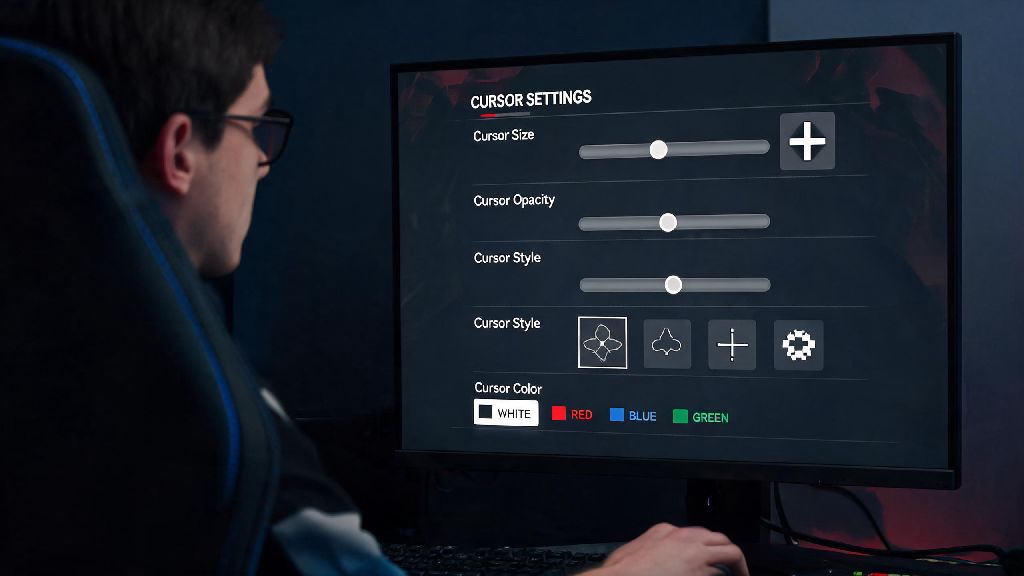
You don’t need to download any extra files to get a better cursor, because Valve has built-in customization options right in the game settings. First, launch Dota 2 and click the gear icon in the top left corner to open your settings menu. Navigate to the Options tab, then scroll down to the Interface section to find the cursor controls. The default 100% cursor size is far too small for most modern monitor resolutions, so start by sliding the cursor size bar to between 120% and 150% – that’s the sweet spot for most 1080p and 1440p displays, as it’s large enough to see without blocking skill shot previews or unit details. You’ll also see a dropdown for cursor style, with options for Default, Large, and Legacy. Legacy cursor is the most popular pick for long-time players, as it has a thicker, higher-contrast design that stands out far better against busy backgrounds than the sleek modern default. Once you adjust these settings, you can test them immediately by moving your cursor around the menu or hopping into a quick demo hero match to see how it feels in actual gameplay.
Key Benefits of Customizing Your Dota 2 Cursor
A lot of players write off cursor customization as a silly cosmetic change, but it has real, measurable impacts on your gameplay performance and comfort. The biggest win is how much it cuts down on avoidable mistakes, especially during high-pressure moments. I used to misclick creeps instead of casting targeted abilities at least once a game, until I switched to a larger legacy cursor and those mistakes almost completely disappeared. Some of the most common issues that cursor customization fixes include:
Reduced misclicks during high-pressure team fights aren’t the only benefit, either. Many players report that they don’t get as tired during long gaming sessions once they switch to a more visible cursor, because they’re not constantly squinting to find where their mouse is on the screen. For players with minor vision impairments, this tweak can even make the game far more accessible overall.
How to Install Safe Custom Cursors for Dota 2
If the built-in cursor options don’t work for you, you can use community-made custom cursors, as long as you stick to trusted sources and follow Valve’s rules. First, it’s important to note that purely cosmetic custom cursors are 100% allowed by Valve, and won’t trigger a VAC ban as long as they don’t modify any game functionality. You should never download cursor packs from untrusted third-party sites, as many of them come bundled with malware or extra game files that can be flagged as cheating tools. Most safe, community-vetted cursor packs are shared on the official Dota 2 subreddit or Steam community forums, and they’re always free to download. Once you have a pack you trust, first navigate to your Dota 2 game folder (you can find this by right-clicking Dota 2 in your Steam library, selecting Manage, then Browse Local Files). Open the "resource" folder, then the "cursor" folder, and make a copy of all the original cursor files stored there – save this copy in a separate folder so you can easily revert if you don’t like the custom option. Next, paste the new cursor files from your downloaded pack into the cursor folder, overwrite the existing files when prompted, then restart Dota 2 to apply the changes. Make sure you test the new cursor in a demo match first to make sure it works correctly and feels comfortable to use.
Common Cursor Customization Mistakes to Avoid
While customizing your cursor is simple, there are a few common mistakes that can make your gameplay worse instead of better. The most frequent mistake I see is players cranking their cursor size up to 200% or higher, thinking bigger is always better. A cursor that’s too large will block your view of small skill shot indicators, unit health bars, and even enemy positioning, which will lead to more mistakes instead of fewer. Another common mistake is picking a cursor color that’s too similar to the map terrain you play on most often. If you main Radiant side, a bright green or yellow cursor will blend right into the grass, so stick to darker, high-contrast colors like deep blue or red. Always test your new cursor in a demo hero match first before you jump into a ranked game, so you can adjust size, color, or swap back to the default if it’s not working for you. You also want to avoid downloading any cursor packs that come with extra .vpk files outside of the cursor folder, as these can modify other game assets and trigger a VAC ban even if you didn’t intend to cheat. If you notice any unusual lag or input delay after installing a custom cursor, revert back to your original files immediately, as it’s likely a corrupted file that’s causing issues.
At the end of the day, learning how to change cursor in Dota 2 is such a small, quick tweak that can have a huge impact on how much you enjoy the game, and how well you perform. You don’t have to install fancy custom packs to get the benefits, either – just adjusting the built-in size and switching to the legacy cursor is enough for 90% of players. Take 5 minutes to test out different settings the next time you launch the game, and you’ll probably wonder why you didn’t make the change sooner. I still use the same legacy cursor at 130% size that I set up 3 years ago, and I haven’t had a mid-fight "where’s my cursor" panic ever since.