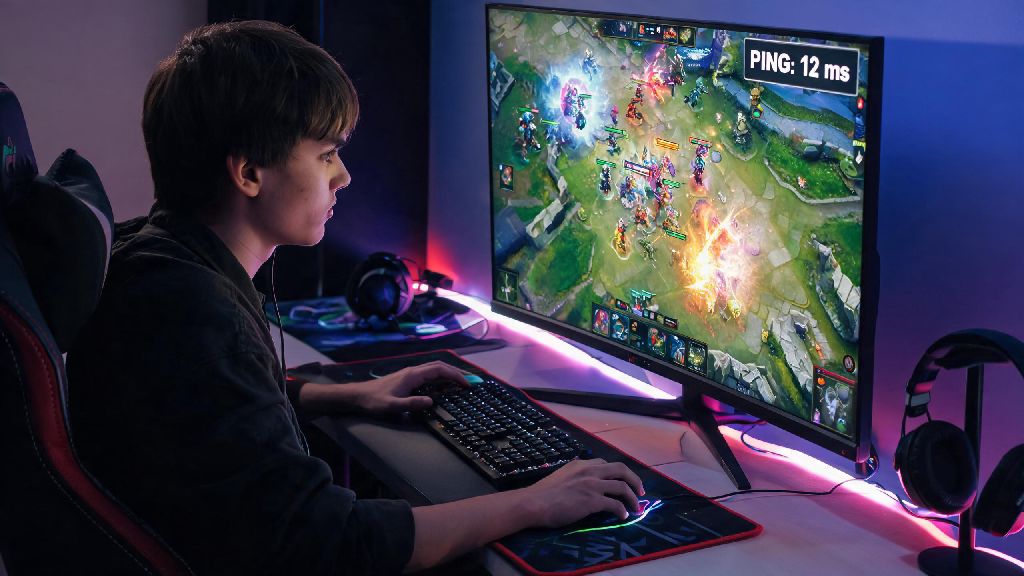
If you’ve ever lined up a perfect Pudge hook only to watch your screen freeze for 3 full seconds before you feed first blood, you know exactly how devastating high latency can be in Dota 2. Even small ping spikes can throw off last hits, skill shot timing, and team fight positioning, turning a sure win into a frustrating loss in seconds. Learning how to check your ping in Dota 2 is one of the most basic, high-impact skills you can pick up to avoid those preventable losses, and it takes less than a minute to do before every match. Most new players don’t realize they can spot latency issues long before they ruin their gameplay, and fixing those issues early keeps you and your entire team from tilting before the 10-minute mark.
Why Ping Directly Impacts Your Dota 2 Match Performance
Ping, measured in milliseconds (ms), is the time it takes for your device to send a signal to the Dota 2 server and get a response back. The lower your ping, the faster your in-game actions register on the server, and the more responsive your controls feel. For fast-paced MOBAs like Dota 2, even a 50ms difference between you and your lane opponent can put you at a massive disadvantage: they’ll be able to trade hits, dodge spells, and secure last hits faster than you can react. Any ping over 100ms will start to create noticeable lag, and pings over 200ms will make most skill-based plays nearly impossible to pull off consistently. A lot of players blame bad aim or slow reaction time for poor lane performance when high ping is the actual culprit, so checking your latency before you queue up eliminates that guesswork entirely. You don’t want to waste 40 minutes of your time on a ranked match you can’t win just because you didn’t notice your ping was spiking before you hit accept.
3 Simple Methods to Check Your Ping in Dota 2
You don’t need any third-party tools to get an accurate read of your Dota 2 latency. Valve has built multiple easy access points right into the game, so you can pick the method that works best for your play style. All of these methods take less than 10 seconds to use, and you can run them either from the main menu or mid-match if you start noticing lag spikes. Here are the three most reliable options:
To turn on the in-game ping display, head to your Options menu from the main Dota 2 screen, click the Advanced Options tab, and check the box labeled “Display Network Information.” Once enabled, you’ll see your current ping, packet loss percentage, and frame rate in the top right corner of your screen at all times during matches. This is the best option for casual players who just want a quick way to spot latency issues as soon as they pop up mid-game. For the console command method, you’ll first need to enable the developer console in your Options menu, under the Advanced tab. Once it’s enabled, press the tilde (~) key to open the console, type “ping”, and hit enter. The console will pull up a full breakdown of your average ping, minimum and maximum ping over the last 30 seconds, and any packet loss you’re experiencing. This is the best option if you’re trying to troubleshoot intermittent lag spikes, as it gives you more detailed data than the basic in-game display. The pre-queue ping test is even simpler: when you’re on the play screen selecting your game mode and server region, hover over each available server to see your current ping to that region. You can use this to pick the lowest ping server available before you queue, which eliminates most latency issues before they even start.
Common Causes of High Dota 2 Ping (and Quick Fixes)
Once you’ve confirmed you’re dealing with high ping, you don’t have to immediately give up on your play session. Most latency issues are caused by simple, easy to fix problems on your end, not server outages or issues with Valve’s infrastructure. The first thing you should check is background bandwidth hogs running on your device or home network. Streaming services, file downloads, video calls, or even other devices on your network running updates can eat up bandwidth and cause ping spikes in Dota 2. Pausing those downloads or asking other people in your household to hold off on streaming 4K content while you play is often enough to bring your ping back down to acceptable levels. If that doesn’t work, try restarting your router. Most people leave their routers running 24/7 for months at a time, and small performance glitches can build up over time that cause intermittent latency issues. A quick 30 second reset is often enough to clear those glitches and stabilize your connection. If you’re playing over Wi-Fi, switching to a wired ethernet connection is one of the most impactful changes you can make to lower your ping. Wi-Fi signals are prone to interference from walls, other electronics, and neighboring networks, which can cause random ping spikes even if you’re sitting right next to your router. A cheap ethernet cable will eliminate that interference entirely, and most players see a 20 to 50ms drop in ping immediately after switching. If none of these fixes work, the issue might be on Valve’s end. You can check the Dota 2 server status page to see if there are any outages or performance issues with your selected server region, and switch to a nearby alternate region if yours is having problems.
Best Practices to Keep Ping Stable During Long Play Sessions
Checking your ping before you queue is a great first step, but there are small changes you can make to your setup and routine to keep your latency stable even during 4 or 5 hour play sessions. First, make sure you’re always connecting to your closest available server region. A lot of players queue for multiple regions to cut down on wait times, but even jumping to a region that’s 200 miles away can add 30ms or more to your ping. Server region select is one of the most underused settings in the game, and limiting your queue to only your 1 or 2 closest regions will almost always give you the most stable connection, even if it adds a minute or two to your queue time. You should also make sure your Dota 2 game files and network drivers are up to date. Outdated game files can cause performance bugs that lead to unnecessary latency, and outdated network drivers can create compatibility issues with your router that cause ping spikes. Most updates install automatically, but it’s worth checking for manual updates once a week to make sure you’re running the latest versions. If you live in a household with a lot of other people using the internet at the same time, you can set up Quality of Service (QoS) rules on your router to prioritize Dota 2 traffic over other types of network usage. This ensures that even if someone else starts streaming or downloading files while you play, your game traffic gets first priority, and your ping stays stable. You don’t need any fancy equipment to set this up, most modern routers have QoS settings built right into their admin panel, and you can find step-by-step guides for your specific router model online. You should also avoid using VPNs while playing Dota 2 unless you absolutely have to. VPNs route your traffic through an extra server, which adds extra latency to your connection no matter how fast the VPN is. If you have to use a VPN for security reasons, make sure you connect to a VPN server that’s in the same region as your selected Dota 2 server to minimize the extra latency.
At the end of the day, Dota 2 is hard enough without avoidable latency issues ruining your matches. Taking 10 seconds to learn how to check your ping in Dota 2 and make a habit of doing it before every queue will save you hours of frustration, tilt, and lost MMR over time. You don’t need to be a tech expert to fix most high ping issues, either: small changes like switching to a wired connection, pausing background downloads, and sticking to your closest server region will eliminate 90% of common latency problems for most players. The next time you’re getting ready to queue for ranked, take a quick second to check your ping first. It’s a tiny step that will make a massive difference in how your games feel, and how many you win.