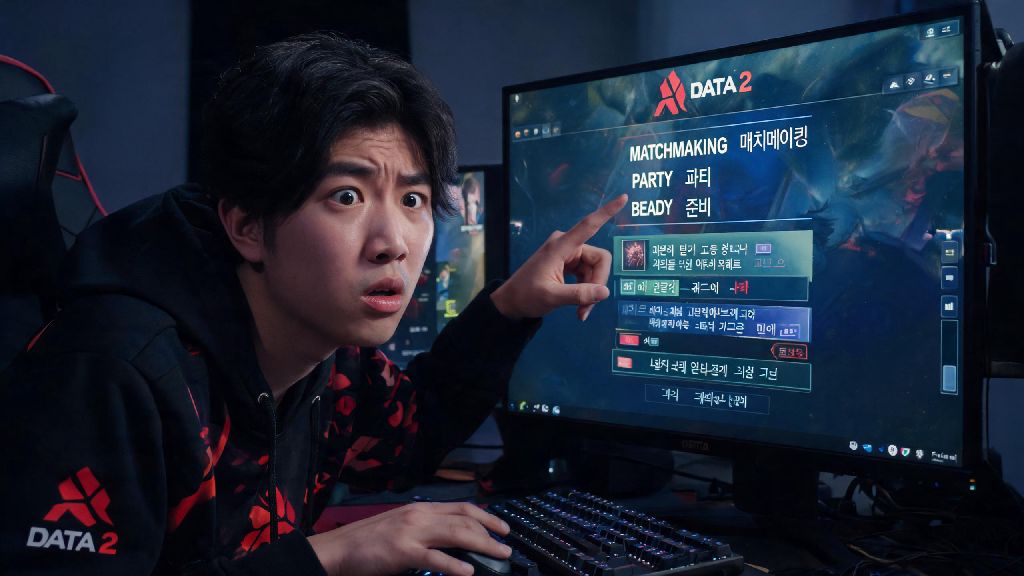
I’ve had this happen before when I logged into my Steam account on a friend’s computer in Seoul, and came back to all my Dota 2 menus in Korean, with zero clue how to navigate back to settings. It’s a frustrating experience, especially if you’re trying to queue for a match quickly or look up a new hero’s ability stats. If you’ve ever booted up Dota 2 only to find menus and ability descriptions in a language you can’t read, you’re probably looking for clear steps for how to change language in Dota 2 without messing up your saved settings or game progress. This guide covers every working method for all platforms, plus fixes for the most common glitches that stop language changes from sticking.
How to Change Language in Dota 2 via Steam Library Settings
This is the most reliable method for most players, and it works for all Steam-connected devices, including Windows, Mac, and Linux. The best part is you don’t need to launch the game first for this method, which is perfect if you can’t read the in-game menus to navigate to settings at all. Start by opening your Steam desktop app and navigating to your Library tab. Find Dota 2 in your list of games, right click the title, and select “Properties” from the dropdown menu.
Once the Properties window opens, look for the “Language” tab on the left side of the screen. You’ll see a dropdown menu with all supported Dota 2 languages, from common options like English, Spanish, and Mandarin to less widely used options like Bulgarian, Vietnamese, and Ukrainian. Select the language you want to use, then close the Properties window. Steam will automatically start downloading the required language pack for Dota 2, which usually only takes a minute or two depending on your internet speed.
So that you don’t run into issues, wait for the language pack to finish downloading before you launch the game. If you launch Dota 2 while the pack is still downloading, you might see a mix of two languages across menus and ability descriptions until the download is complete. This method will also override any previous in-game language settings you had saved, so you only have to do it once per account unless you switch devices later.
In-Game Dota 2 Language Adjustments for Quick Switches
If you’re already in the middle of a play session and don’t want to exit to Steam to adjust settings, you can change your language directly from the in-game menu. This is also the best method if you only want to change the language for Dota 2, and leave the rest of your Steam library in a different language. Start by clicking the gear icon in the top left corner of the main Dota 2 menu to open your settings. If you can’t read the menu to find the gear icon, it’s the small circular icon right next to your profile name in the top left of the screen.
From the settings menu, navigate to the “Game” tab, which is the first tab on the left side of the screen. Scroll down until you see the “Language” dropdown option. Select your preferred language from the list, then exit the settings menu. Keep in mind you will need to restart your game for the changes to take effect, so make sure you’re not in the middle of a match queue or unranked game before you make the switch. When you launch Dota 2 again, all menus, ability descriptions, and voice lines will be in your selected language.
This method is great for players who share a computer with other Dota 2 players who speak different languages. You can switch between languages in under a minute, and your preferences will stay saved to your Steam account even if someone else changes the settings on the same device. Just make sure you log into your own Steam profile before you make any changes, or the settings will save to the active account instead of yours.
Fixing Common Language Glitches in Dota 2
Sometimes language changes don’t stick, even if you follow all the steps correctly. This usually happens if you have corrupted game files, outdated cached data, or conflicting launch options that override your language settings. I’ve run into this issue a handful of times after big Dota 2 updates, and these fixes have worked every single time for me:
One important warning here: never download third-party language packs from untrusted sites to access languages that aren’t officially supported by Dota 2. These packs often contain malware, and modifying core game files can trigger a VAC ban even if you don’t use any cheats. If your preferred language isn’t available in the official dropdown, you can submit a feedback request to Valve through the Dota 2 support page to ask for it to be added in a future update.
Key Things to Consider Before Changing Your Dota 2 Language
Changing your Dota 2 language is completely safe and won’t affect any of your account progress, including your MMR, skin collection, match history, or friend list. But there are a few small things to keep in mind before you make the switch to avoid frustration later. First, all hero voice lines and in-game audio cues will change to your selected language. If you’re a more experienced player who relies on audio cues to react to enemy abilities, like the sound of a Pudge hook or a Lina ultimate cast, you might need a few matches to get used to the new voice lines.
Also, custom game mods may not support all languages, especially smaller mods made by independent creators. If you play a lot of custom games like Auto Chess or Ability Draft, test your new language in a quick custom match before you queue for a competitive game. Some mods will default back to English even if your main Dota 2 settings are in a different language, and others might show broken text or missing characters if they don’t have support for your selected language.
On the fun side, changing your Dota 2 language is a great way to practice a new language you’re learning. You’ll pick up gaming vocabulary quickly, and you can even switch your chat language settings to match to practice typing in your target language with other players. Just make sure you set your matchmaking region to match your language if you want to be matched with other players who speak the same language as you, so you can communicate easily during matches.
Switching your Dota 2 language doesn’t require any technical skills, and the whole process takes less than five minutes even if you run into small glitches. You can choose between the Steam library method for permanent account-wide changes, or the in-game method for quick switches between play sessions. No matter if you’re switching to your native language to play with friends or testing a new language for fun, following these simple steps will make how to change language in Dota 2 a quick, stress-free process. If you run into any issues that aren’t covered in this guide, you can reach out to Steam support for further help with your account settings.